Using Pipeyard
This section explains how to read and filter pipeline data inside Jira.
Viewing pipeline status
The main dashboard shows every repository in the configured workspace. Each row displays the latest pipeline run, its status, branch, commit, and when it ran.
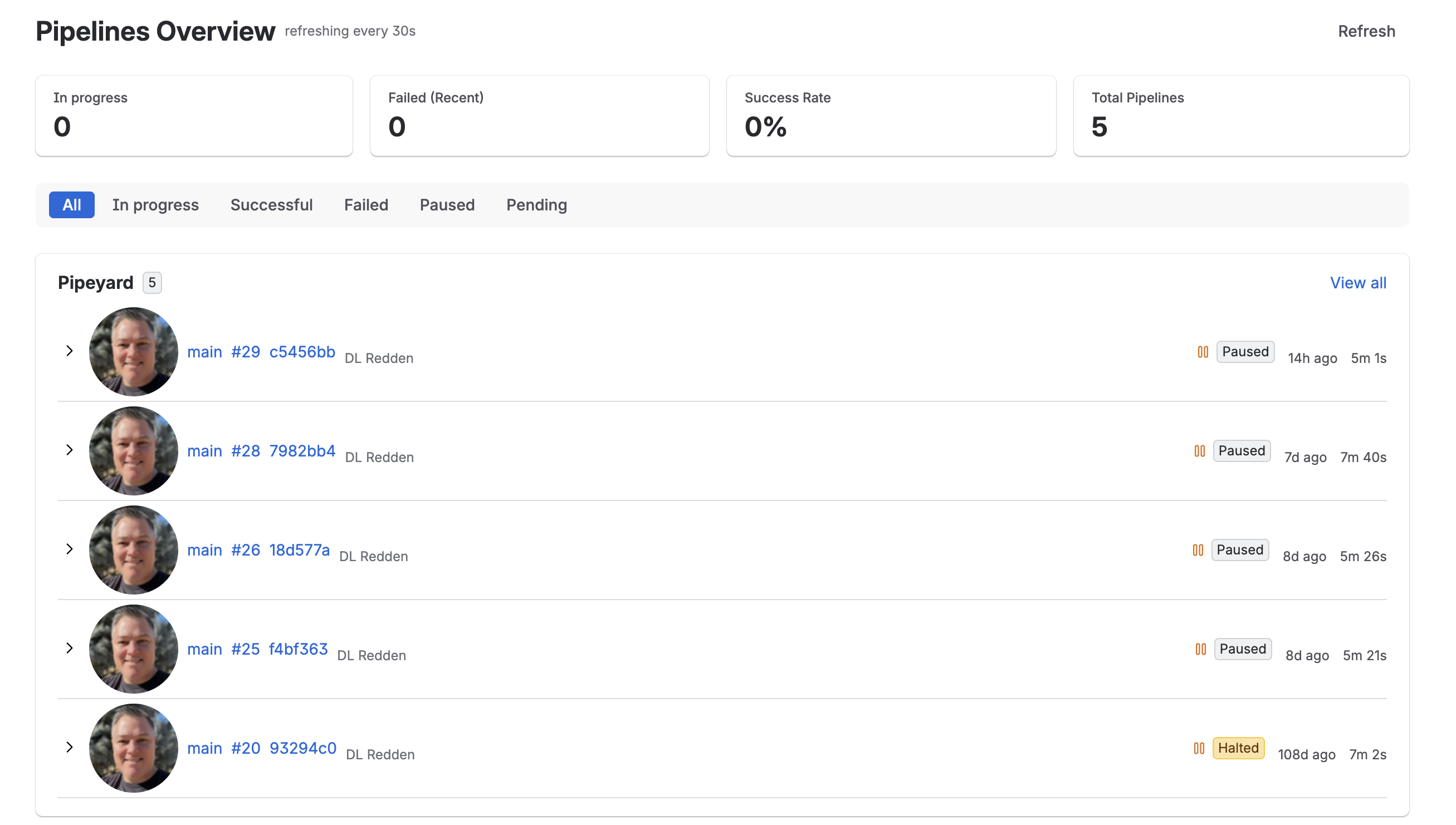
Click a repository to open the repository-specific view and see its recent pipeline history.
Understanding status indicators
Pipeyard uses the following status colors and labels:
- Successful — green. The pipeline completed without errors.
- Failed — red. One or more steps failed or the build was stopped.
- In progress — blue. The pipeline is currently running.
- Stopped — gray. The pipeline was stopped or did not run.
- Unknown — muted. Pipeyard could not retrieve the latest status.
Filtering
Use the filter bar to narrow the list:
- Status — show only successful, failed, in progress, or stopped pipelines.
- Repository — search by repository name or slug.
- Branch — show pipelines for a specific branch.
- Runner — filter by the runner that executed the build.
Filters are applied in the browser and do not change what is stored in Bitbucket.
Repository-specific view
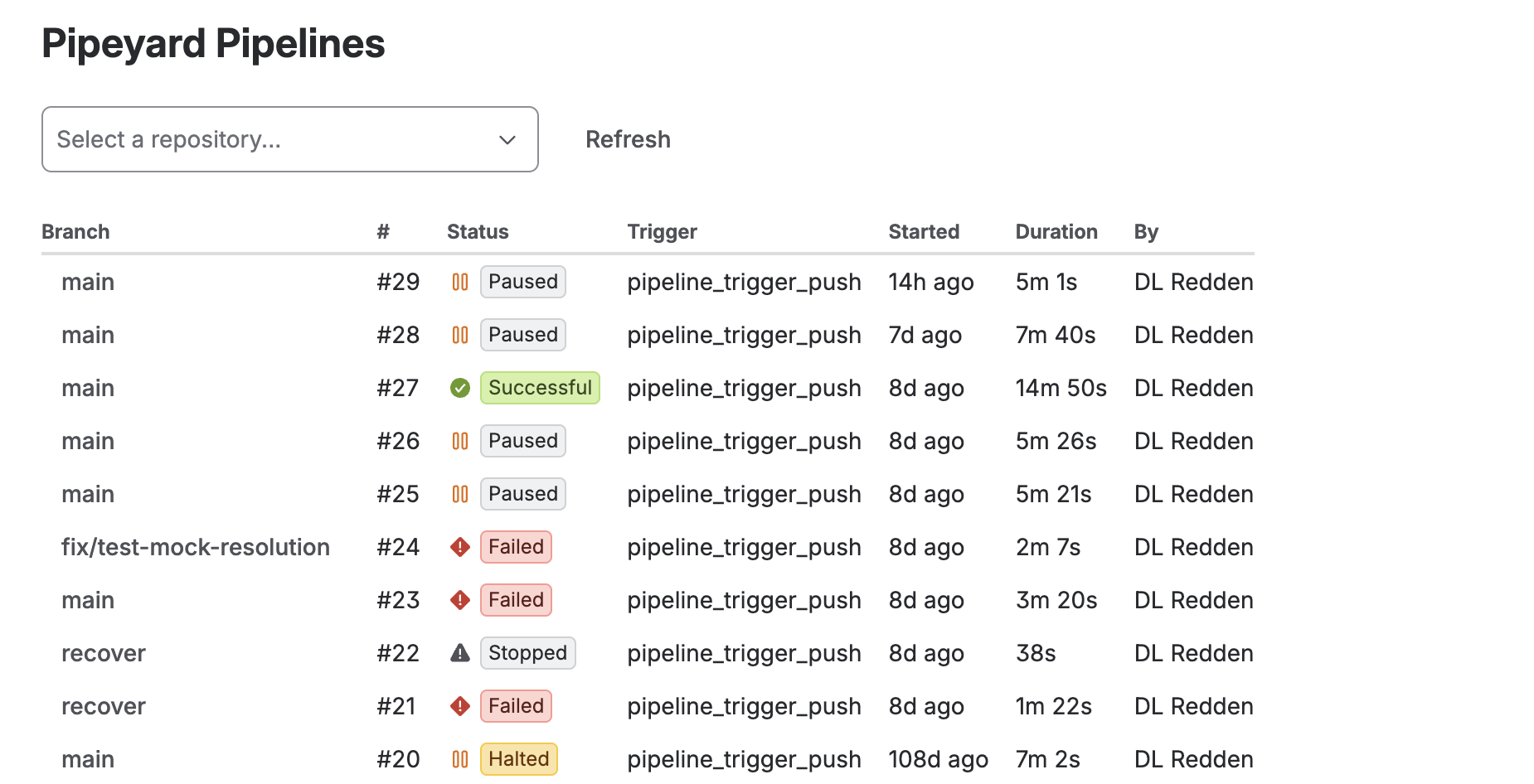
Select a repository to see its full pipeline history. Each row shows the branch, build number, status, trigger, start time, duration, and who triggered the run.
Reading build information
Click any pipeline to see:
- Branch and commit.
- Start and end times.
- Total duration.
- Step-level results.
- Runner name (for self-hosted runners).
Pipeyard does not display full build logs or source code. If you need detailed logs, open the pipeline in Bitbucket.
Troubleshooting missing pipeline data
If a pipeline is missing:
- Confirm the repository is in the configured workspace.
- Check that Pipelines is enabled in the repository settings.
- Make sure at least one pipeline has run.
- Try a different branch or refresh the dashboard.
Runner monitoring
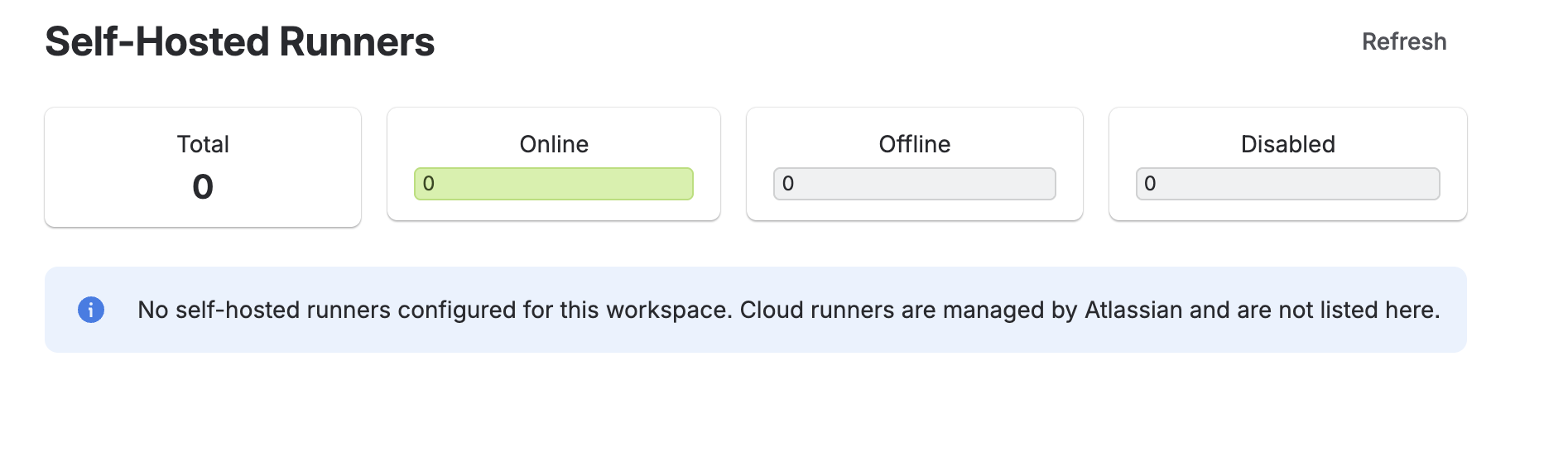
If your workspace has self-hosted runners, the Runners tab shows how many are online, offline, or disabled. Cloud runners are managed by Bitbucket and are not listed here.